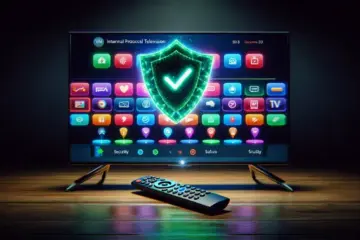
The Complete Android TV IPTV Guide Setup VPN And Apps

Understanding IPTV Technology
Internet Protocol Television (IPTV) represents a fundamental shift in how television content is delivered. Unlike traditional broadcast methods like cable or satellite, IPTV streams media content directly over your internet connection. This technology allows for a more flexible and personalized viewing experience, as content is delivered on-demand or through live streaming via internet protocols.
IPTV services typically operate through a dedicated app or set-top box, which connects to your television. The core advantage of this system is its ability to offer a vast library of live TV channels, video-on-demand (VOD) movies and series, and even cloud-based digital video recording (DVR) capabilities. For a deeper exploration of how these services work and what to look for, our complete IPTV subscription guide provides an extensive breakdown.
Why Android TV is a Premier Choice
Android TV stands out as an excellent platform for IPTV due to its open ecosystem and user-friendly interface. This operating system, developed by Google, transforms your television into a smart entertainment hub. It grants access to the Google Play Store, where you can download a wide array of streaming apps, including official IPTV services and third-party players.
Moreover, the integration with the Google Assistant allows for voice-controlled searches, making it easier to find your favorite shows or channels. The platform’s flexibility also means you can sideload applications not available on the official store, which is a common method for installing various IPTV apps. Consequently, Android TV provides a versatile and powerful foundation for any streaming setup.
The Critical Role of a VPN for Streaming
Using a Virtual Private Network (VPN) is a crucial step for both enhancing your security and unlocking content. A VPN encrypts your internet traffic, shielding your online activity and IP address from your Internet Service Provider (ISP) and potential eavesdroppers. This is particularly important for IPTV users, as some ISPs may throttle bandwidth during high-data activities like streaming.
Furthermore, a VPN allows you to connect to servers in different countries, effectively bypassing geographical restrictions. This means you can access region-locked content and services that may not be available in your location. Therefore, incorporating a reliable VPN is a best practice for a safer and more versatile streaming experience.
Navigating the Legal Landscape of IPTV
When exploring IPTV services, understanding their legal standing is paramount. The legality of an IPTV service depends entirely on whether it holds the proper broadcasting licenses for the content it provides. Reputable, licensed services operate within the law, while unverified services offering premium channels at suspiciously low prices often do so illegally.
Using unauthorized services can pose significant risks, including exposure to malware, unreliable streams, and potential legal repercussions for copyright infringement. It is essential to conduct thorough research before subscribing. Our guides on specific services, such as the sports IPTV investigation and the 4K IPTV legality guide, are designed to help you make informed and safe choices.
Before committing to any service, always verify its legitimacy. Many providers offer a free IPTV trial, which is an excellent opportunity to test the service’s reliability, channel selection, and overall performance without any financial obligation.
Choosing the Right Android TV Device for IPTV
Selecting the proper Android TV device is crucial for a smooth IPTV experience. Look for models with at least 2GB of RAM and 8GB of storage to handle demanding streaming applications without lag. Devices with quad-core processors or better, such as the NVIDIA Shield TV Pro or newer Chromecast with Google TV, provide the processing power needed for seamless 4K streaming.
Additionally, ensure your chosen device supports the latest video codecs like HEVC/H.265 for efficient bandwidth usage. Many users find that dedicated streaming devices outperform smart TV built-in apps, offering more frequent software updates and better performance. For the best results, prioritize devices that receive regular Android TV OS updates and security patches.
Essential Network Setup for Buffer-Free Streaming
A stable internet connection is non-negotiable for quality IPTV streaming. For HD content, aim for at least 15-25 Mbps, while 4K streams require 25-50 Mbps. However, bandwidth alone isn’t enough—connection stability matters just as much. Wired Ethernet connections consistently outperform Wi-Fi for streaming reliability.
If you must use Wi-Fi, position your router close to your streaming device and consider a 5GHz network for less interference. Quality of Service (QoS) settings on your router can prioritize streaming traffic, while DNS changes to services like Google DNS or Cloudflare can improve connection speeds. For larger homes, mesh Wi-Fi systems provide consistent coverage throughout your space.
Must-Have Accessories for Enhanced IPTV Viewing
Several accessories can significantly improve your IPTV setup. An Ethernet adapter provides wired connectivity to devices without built-in ports, ensuring stable streaming. Meanwhile, a quality universal remote with shortcut buttons simplifies navigation across different IPTV apps and services.
External storage expands your device’s capacity for recording live TV or downloading content through IPTV services. For audio enthusiasts, a soundbar or home theater system dramatically enhances the viewing experience. Finally, consider a USB hub if your device has limited ports, allowing you to connect multiple accessories simultaneously.
When setting up your IPTV subscription, these hardware considerations work together with your service choice to create an optimal entertainment system. Proper device selection, network configuration, and accessories ensure you get the most value from your streaming investment while minimizing technical issues.
Top IPTV Apps for Enhanced Streaming Experiences
Choosing the right IPTV application can dramatically improve your streaming quality and user experience. While your IPTV subscription provides the content, the app you use determines how you access and enjoy that content. Two standout applications have emerged as favorites among streaming enthusiasts: TiviMate and IPTV Smarters Pro.
TiviMate: The Premium IPTV Experience
TiviMate has quickly become the gold standard for IPTV enthusiasts seeking a cable-like interface. This Android-exclusive application focuses exclusively on IPTV services rather than incorporating VOD platforms. Its clean, intuitive design makes navigating through channels and electronic program guides remarkably smooth.
The application offers multiple screen customization options, allowing users to tailor their viewing experience precisely. You can organize channels into favorites, create custom groups, and even set up parental controls. Meanwhile, TiviMate’s recording functionality enables you to capture live TV directly to external storage, though this feature requires the premium version.
One significant advantage is TiviMate’s support for multiple playlists and EPG sources. This means you can manage several IPTV subscriptions within a single interface. However, the application does have limitations—it’s only available on Android devices and requires a separate payment for premium features after a brief trial period [Source: TiviMate Official Website].
IPTV Smarters Pro: The Versatile All-Rounder
IPTV Smarters Pro takes a different approach, offering compatibility across multiple platforms including Android, iOS, Windows, and macOS. This cross-platform availability makes it an excellent choice for households with diverse devices. The application supports not only live TV but also video-on-demand content and catch-up TV services.
The interface is user-friendly with a modern design that organizes content logically. IPTV Smarters Pro includes parental controls, multi-screen support, and the ability to manage multiple IPTV subscriptions simultaneously. Its built-in media player handles various formats seamlessly, reducing compatibility issues with different stream types.
Unlike TiviMate, IPTV Smarters Pro remains free to use with all features accessible. However, some users report that the interface can feel slightly less polished than TiviMate’s premium experience. The application also includes additional security features and regularly updates to maintain compatibility with evolving IPTV services [Source: IPTV Smarters Official Website].
Choosing Between TiviMate and IPTV Smarters Pro
Your choice between these applications depends largely on your specific needs and device ecosystem. TiviMate excels for dedicated Android TV users who want a premium, cable-like experience with extensive customization options. Conversely, IPTV Smarters Pro offers greater flexibility across different operating systems while maintaining strong functionality.
Both applications require a reliable IPTV subscription to function properly. Before committing to either app, consider taking advantage of IPTV free trials to test compatibility with your preferred service. Sports enthusiasts might particularly appreciate how these apps enhance sports IPTV viewing through better organization and recording capabilities.
Ultimately, both TiviMate and IPTV Smarters Pro represent significant upgrades over basic IPTV players. They transform raw IPTV streams into polished viewing experiences that rival traditional cable and satellite services. Your decision should factor in device compatibility, desired features, and whether you prefer the specialized approach of TiviMate or the versatile nature of IPTV Smarters Pro.
How to Install a VPN on Android TV
Setting up a VPN on your Android TV is a straightforward process that significantly enhances your streaming security. You can install a VPN application directly from the Google Play Store on your device, just like you would on a smartphone.
First, navigate to the Google Play Store on your Android TV’s home screen. Use the search function to find your preferred VPN provider. Popular options include ExpressVPN, NordVPN, and Surfshark. Once you’ve selected the app, click “Install” and wait for the download to complete.
After installation, open the VPN application. You will need to log in using the account credentials you created when subscribing to the service. If you haven’t chosen a provider yet, our complete IPTV subscription guide includes recommendations for VPNs known for their speed and reliability, which are crucial for buffer-free streaming.
Configuring Your VPN Connection
Once logged in, the app will typically present you with a list of server locations. For optimal performance with IPTV services, it’s best to connect to a server that is geographically close to you or one that is recommended for streaming. Many VPN apps have a “Quick Connect” button that automatically selects the best server for your needs.
Establishing the connection is usually as simple as clicking on your chosen country or city. The app will then connect, and a key icon or similar indicator will appear in your Android TV’s status bar, confirming that your connection is now secure. Your real IP address is hidden, and your internet traffic is encrypted, protecting your online activity from your Internet Service Provider and potential eavesdroppers.
Manual VPN Setup via Android TV Settings
If your preferred VPN provider does not offer a dedicated Android TV app, you can configure it manually using Android’s built-in VPN support. This method requires you to obtain specific configuration details from your VPN provider, such as server addresses and login credentials.
To begin, go to “Settings” on your Android TV, then navigate to “Network & Internet.” Select “VPN” and then click “Add VPN.” You will be prompted to enter details like the VPN name, type (e.g., PPTP, L2TP/IPsec, or IKEv2), server address, and your username and password.
After saving the profile, you can select it from the VPN list and click “Connect.” While this method is effective, using a dedicated app is generally more user-friendly and offers features like automatic server selection and a kill switch, which cuts your internet connection if the VPN drops unexpectedly.
Why a VPN is Essential for IPTV Streaming
Using a VPN with your IPTV service provides two major benefits: enhanced security and access to geo-restricted content. When you stream, a VPN encrypts your data, making it unreadable to anyone who might intercept it. This is particularly important on public Wi-Fi networks but is a good practice for any connection.
Furthermore, a VPN allows you to bypass geographical restrictions. Some live TV channels or on-demand libraries are only available in certain countries. By connecting to a VPN server in the required country, you can access this content as if you were physically located there. This can be especially useful for accessing a wider range of sports events or international channels. For a deeper look at sports-specific services, our sports IPTV investigation guide explores this in detail.
Optimizing VPN Performance for Streaming
To ensure a smooth, high-definition streaming experience, a fast VPN connection is non-negotiable. Buffering and lag can ruin live sports or movies. Always choose a VPN server known for high speeds and low latency. Many premium VPN services have servers specifically optimized for streaming video.
If you experience slow speeds, try connecting to a different server within the same country. Additionally, using a wired Ethernet connection for your Android TV, instead of Wi-Fi, can provide a more stable and faster network base, which complements your VPN’s performance.
Before committing to a long-term subscription, it’s wise to test the service. Many top VPN providers and IPTV services offer free trials or money-back guarantees, allowing you to verify that the combination works seamlessly on your Android TV setup.
How to Set Up IPTV on Android TV
Setting up IPTV services on your Android TV requires just a few key components: a compatible IPTV player app, your M3U playlist URL, and Electronic Program Guide (EPG) data for channel information. This straightforward process opens up a world of live television.
Step 1: Choose and Install an IPTV Player App
First, you’ll need to install an IPTV player from the Google Play Store on your Android TV. Popular and highly-rated options include:
- TiviMate: A favorite for its user-friendly interface and robust features, including support for multiple playlists.
- IPTV Smarters Pro: A versatile player that works well with many service providers and offers a clean layout.
- OTT Navigator: Another powerful alternative with extensive customization options for advanced users.
Simply search for your chosen app on the Play Store and install it directly to your device [Source: Tech Advisor].
Step 2: Configure Your M3U Playlist
Your M3U playlist is the core of your IPTV service, containing the links to all your channels. You will receive this URL from your IPTV subscription provider after signing up.
- Open your installed IPTV player app (e.g., TiviMate).
- Navigate to the settings or configuration section to add a new playlist.
- Select the option to add a URL.
- Carefully enter or paste the full M3U playlist URL provided by your service.
- Save the configuration. The app will then load your channel list.
It’s crucial to ensure the URL is entered correctly to avoid connection errors. Many providers also offer a free IPTV trial, allowing you to test the setup before committing to a full subscription.
Step 3: Add EPG (Electronic Program Guide) Data
An EPG transforms your channel list into a functional TV guide, showing you what’s currently playing and what’s coming up next. Without it, you’re left with just a list of channel names.
- Within your IPTV app’s settings, find the EPG or TV Guide section.
- Similar to the playlist, you will add an EPG source URL. This is often provided by your IPTV service alongside the M3U playlist.
- Paste the EPG URL into the designated field.
- Save and update the guide. The app will fetch the program data and populate your channel guide.
A properly configured EPG is essential for a premium viewing experience, especially when exploring specialized services like Sports IPTV or Arabic IPTV where live event timing is critical.