Stop Iptv Buffering On Firestick The Complete Troubleshooting Guide
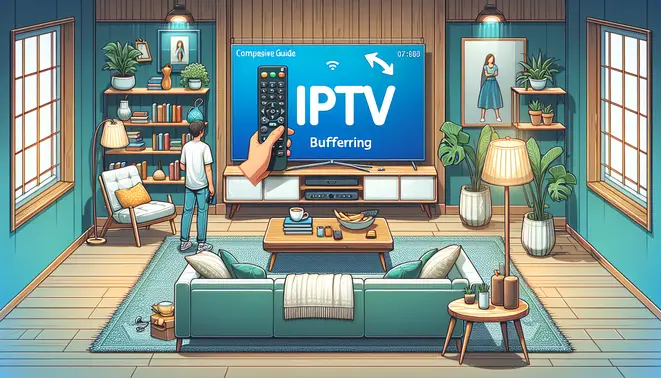
What’s Really Causing Your Firestick to Buffer?
Buffering on your Firestick can transform an enjoyable streaming session into a frustrating experience of endless loading screens. Understanding the root causes is essential to implementing effective solutions. The most common culprits include internet connection issues, device performance limitations, and service provider problems.
Buffering occurs when your Firestick can’t download video data fast enough to play it smoothly. This creates pauses while the device catches up by storing data in a temporary buffer. Identifying whether the issue stems from your network, hardware, or service provider is the first step toward resolution.
Internet Connection Problems
Your internet connection is often the primary suspect when buffering occurs. Several factors can impact your network’s performance:
Insufficient Bandwidth: Streaming IPTV, especially in HD or 4K quality, requires substantial bandwidth. According to streaming requirements, 4K content may need 25 Mbps or more for stable playback [Source: FCC]. If multiple devices are using your network simultaneously, your available bandwidth might not meet these demands.
Wi-Fi Signal Issues: Distance from your router, physical obstructions, and interference from other electronic devices can weaken your Wi-Fi signal. A weak connection forces your Firestick to repeatedly request data, resulting in frequent buffering. Additionally, network congestion during peak usage hours can significantly reduce internet speeds.
Device Performance Limitations
Your Firestick’s hardware and software condition directly impacts streaming performance:
Insufficient Storage Space: When your device’s storage is nearly full, it struggles to maintain an adequate video buffer. The Firestick requires free space to temporarily store video data for smooth playback. Clearing cache and unused applications can immediately improve performance.
Outdated Software: Running an older version of Fire OS or outdated streaming applications can cause compatibility issues and performance degradation. Regular updates often include optimizations for better streaming efficiency and bug fixes that reduce buffering.
Background Processes: Applications running in the background consume valuable system resources, including memory and processing power. These competing processes can limit the resources available for smooth video playback, leading to intermittent buffering.
Service Provider and Server Issues
Sometimes the problem originates with your IPTV service rather than your equipment:
Server Overload: During popular live events or peak viewing hours, IPTV servers may become overloaded with user requests. This server-side congestion can cause buffering even with a perfect home setup. Different IPTV providers maintain varying server capacities and infrastructure quality.
Content Delivery Networks: The distance between your location and your provider’s content delivery servers affects streaming performance. Greater geographical distance typically means longer data travel times, potentially resulting in buffering. Some providers offer multiple server locations to minimize this issue.
Subscription Quality: The tier and quality of your IPTV subscription directly impact streaming stability. Free or heavily discounted services often lack the infrastructure for consistent performance. Our complete IPTV subscription guide explains how to evaluate provider reliability and infrastructure.
Essential Speed Tests for Firestick
Before diving into IPTV streaming, verifying your internet speed is crucial. Firestick users should perform a speed test directly from their device to measure real-time performance. Navigate to Settings > Network > Your Network Name to view connection details and run a speed test. For optimal 4K streaming, aim for at least 25 Mbps download speeds [Source: FCC], while HD content requires 5-10 Mbps.
Additionally, use third-party speed test apps available through the Amazon Appstore for more detailed analysis. These tools measure ping, jitter, and packet loss – critical factors affecting streaming stability. Consistent speeds below recommended thresholds often cause buffering during peak viewing hours.
Network Optimization Settings
Optimizing your Firestick network configuration significantly reduces buffering. First, ensure your device connects via 5GHz Wi-Fi whenever possible, as this band offers less interference and faster speeds than 2.4GHz. If experiencing persistent issues, consider using an Ethernet adapter for wired connectivity, which provides the most stable connection for IPTV streaming [Source: New York Times Wirecutter].
Adjust these Firestick settings for improved performance:
- Enable “Data Monitoring” in Settings > Preferences > Data Monitoring to track bandwidth usage
- Turn off “Network Congestion Avoidance” in developer options if available
- Clear cache regularly from Settings > Applications > Manage Installed Applications
- Limit background applications that may consume bandwidth
Clear Cache and Optimize Storage
Buffering on your Firestick often stems from insufficient storage space or a cluttered cache. When your device’s memory is overloaded, it struggles to process streaming data efficiently, leading to constant interruptions. The cache stores temporary data to help apps load faster, but over time, this data can become corrupted or outdated, causing performance issues with your IPTV service.
To clear the cache for a specific app, navigate to Settings > Applications > Manage Installed Applications. Select your IPTV app and choose “Clear cache.” This action removes temporary files without deleting your login information or preferences. For a more thorough cleanup, you can also select “Clear data,” but be aware this will reset the app to its original state, requiring you to sign in again.
Managing your Firestick’s storage is equally crucial. Go to Settings > My Fire TV > About > Storage to see a breakdown of used space. Uninstall any unused applications and consider moving large files to external storage if your device supports it. Keeping at least 1-2 GB of free space ensures your Firestick has enough room to buffer streams effectively [Source: Tech Advisor].
Optimizing Your VPN for IPTV on Firestick
Using a VPN is essential for protecting your privacy and potentially improving streaming performance with IPTV services. However, improper VPN configuration can actually cause or worsen buffering issues. The key is selecting the right server and optimizing your settings for video streaming.
Choosing the Best VPN Server Location
Server selection significantly impacts your streaming quality. Always choose a server geographically close to your actual location to minimize latency. For example, if you’re in New York, select a New York or nearby East Coast server rather than one in Europe. Additionally, connect to servers specifically optimized for streaming if your VPN provider offers them—many premium services label these clearly in their apps.
According to cybersecurity experts, choosing nearby servers reduces data travel distance, resulting in faster connection speeds. Many VPN applications include speed test features that can help you identify the fastest available servers before connecting.
Recommended VPN Protocols for Streaming
Different VPN protocols offer varying balances of security and speed. For IPTV streaming, WireGuard typically provides the best performance due to its modern architecture and efficiency. If WireGuard isn’t available, OpenVPN (UDP) is a reliable alternative that maintains good speeds while offering strong security.
Research from independent testing shows WireGuard consistently outperforms older protocols like PPTP and L2TP for streaming applications. Most quality VPN apps allow you to easily switch between protocols in their settings menu.
Optimize Your Firestick Player Settings
Fine-tuning your IPTV player’s settings is one of the most effective ways to eliminate buffering on your Firestick. Start by adjusting the video decoder settings within your IPTV application. Many players allow you to switch between hardware and software decoding. Hardware decoding, which uses your Firestick’s dedicated processing power, typically delivers smoother playback than software decoding. Additionally, ensure you’re using the most recent version of your IPTV app, as updates often include performance enhancements and bug fixes that directly impact streaming stability.
Configure Buffer Size for Smoother Playback
Buffer size configuration can dramatically reduce interruptions. The buffer acts as a temporary storage area for video data before it plays. A larger buffer size means more video is pre-loaded, providing a cushion against network fluctuations. However, setting it too high can cause initial loading delays. For most users on a stable connection, a moderate buffer setting provides the best balance. Some advanced IPTV players offer manual buffer adjustment in their settings menu, allowing you to experiment with what works best for your specific setup and internet speed.
App-Specific Configuration Tweaks
Different IPTV applications have unique settings that can optimize performance. For example, in popular players like TiviMate or IPTV Smarters, you can often adjust the maximum resolution, enable or disable HLS (HTTP Live Streaming), and modify the user-agent string. Lowering the maximum resolution from 4K to 1080p can significantly reduce bandwidth demands, making buffering less likely on slower connections. Meanwhile, experimenting with HLS settings can sometimes improve compatibility with your IPTV service’s streaming protocol.
Another crucial setting is the video player type within your IPTV app. Most applications offer multiple player options like ExoPlayer, VLC, or their native player. If you’re experiencing consistent buffering with one player, switching to an alternative can sometimes resolve the issue. For instance, the VLC media player is renowned for its robust streaming capabilities and efficient buffering system.
Advanced Solutions for Persistent IPTV Buffering
When basic troubleshooting fails to resolve IPTV buffering on your Firestick, it’s time to implement more advanced solutions. These methods address underlying issues that often cause persistent streaming interruptions.
Optimize Your Network Connection
Network congestion remains a primary culprit for buffering. Consider upgrading to a 5GHz Wi-Fi connection, which offers less interference and faster speeds than 2.4GHz networks. Alternatively, use an Ethernet adapter to create a wired connection directly to your Firestick for maximum stability.
For households with multiple connected devices, implement Quality of Service (QoS) settings on your router. This feature prioritizes streaming traffic over other internet activities, ensuring your IPTV service receives the bandwidth it needs [Source: How-To Geek].
Advanced Network Configuration
For technically inclined users, modifying DNS settings can sometimes improve connection stability. Switch from your ISP’s default DNS to public alternatives like Google DNS (8.8.8.8) or Cloudflare DNS (1.1.1.1). These services often provide faster response times and better routing to streaming servers.
If you’ve exhausted all other options, consider using a VPN. While counterintuitive, a quality VPN can sometimes bypass ISP throttling specifically targeting streaming traffic [Source: PCMag].
Proactive Maintenance for a Smooth IPTV Experience
Preventing IPTV buffering on your Firestick requires consistent, proactive maintenance rather than reactive troubleshooting. By implementing a few key habits, you can ensure your streaming service runs smoothly long-term and avoid the frustration of constant interruptions.
Regularly Clear Cache and Data
Over time, your IPTV app accumulates cached data that can slow down performance and cause buffering. Make it a habit to clear the cache weekly. Navigate to Settings > Applications > Manage Installed Applications, select your IPTV app, and choose “Clear cache.” For a more thorough refresh, you can also select “Clear data,” but note this will reset your app settings and require you to log in again [Source: Tech Advisor].
Keep Your Firestick and Apps Updated
Software updates often include critical performance enhancements and bug fixes that directly impact streaming stability. Enable automatic updates for your Firestick in the settings menu. Furthermore, regularly check for updates to your specific IPTV application within the Amazon Appstore to ensure you have the latest, most optimized version.
Restart Your Device and Router Periodically
A simple restart can resolve a multitude of underlying issues. Make it a routine to fully power cycle your Firestick and your internet router at least once a week. This clears temporary memory glitches, re-establishes a fresh connection to your ISP, and can dramatically reduce instances of buffering.
Choose a Reliable IPTV Service
Ultimately, the foundation of a buffer-free experience is a high-quality, stable IPTV provider. A reputable service invests in robust server infrastructure to handle peak traffic times. Before committing long-term, take advantage of IPTV free trials to test a provider’s performance and reliability with your specific setup. For a deeper dive into selecting a top-tier service, our complete IPTV subscription guide offers detailed comparisons and recommendations.
Sources
- FCC – Speed Requirements for Streaming Video
- How-To Geek – The Beginner’s Guide to Quality of Service on Your Router
- New York Times Wirecutter – The Best Wi-Fi Extender
- PCMag – Does Your ISP Throttle Your Internet? Use a VPN to Fight Back
- PCMag – The Best VPN Services
- Tech Advisor – How to Clear the Cache on a Fire TV Stick
- Tech Advisor – How to Clear the Cache on Amazon Fire TV Stick
- TechRadar – How to Choose a VPN Server
- VideoLAN – VLC Media Player


