How To Install IPTV Smarters On Android TV A Complete Setup Guide
Understanding IPTV Smarters – Your Ultimate Streaming Companion
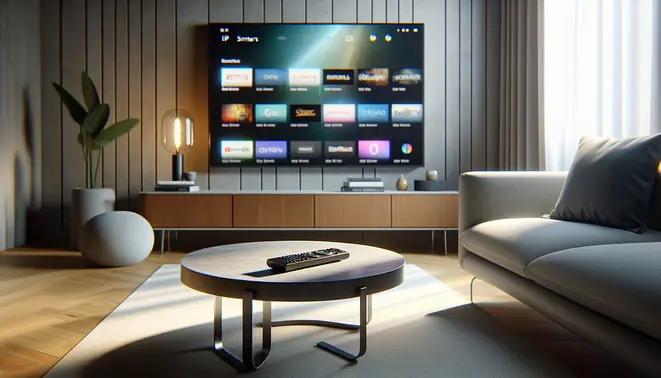
IPTV Smarters is a versatile and widely-used application designed to stream television content over the internet. This powerful app acts as a portal, allowing users to access live TV channels, video-on-demand (VOD) content, and even electronic program guides (EPG) from their IPTV service provider. It essentially functions as a sleek, user-friendly interface for the IPTV subscription you already have.
Developed by WHMCS Smarters, the app is built to be compatible with a wide range of devices, with a particular focus on delivering an optimized experience for Android TV boxes and smartphones. Its primary role is to decode the stream of data from your provider and present it in an easily navigable format.
Why IPTV Smarters is the Preferred Choice
Several key features make IPTV Smarters stand out as a top-tier streaming companion for Android TV users. Its popularity stems from a combination of reliability, a clean interface, and robust functionality.
User-Friendly Interface: The app boasts an intuitive and well-organized layout. Consequently, navigating through live TV, movies, series, and catch-up TV is a seamless experience, even for those new to IPTV. The electronic program guide is visually clear, making it easy to see what’s on now and next.
Multi-Screen and Multi-User Support: A significant advantage is its ability to support multiple connections and profiles. This means different family members can have their own personalized favorites and viewing history. Moreover, some versions support multi-screen viewing, allowing you to watch several channels at once.
Compatibility and Reliability: IPTV Smarters is renowned for its stability and smooth playback. It supports various streaming formats, including HLS, M3U8, and MPEG-DASH, ensuring broad compatibility with different IPTV service providers. This reliability minimizes buffering and provides a consistent viewing experience.
Comprehensive Feature Set: Beyond basic streaming, the app includes features like parental controls, external player support (such as VLC or MX Player), and the ability to record live TV. Therefore, it offers a feature-rich environment that rivals traditional cable boxes.
Getting Started with Your Ultimate Streaming Companion
To begin using IPTV Smarters, you first need a valid subscription from an IPTV provider. Many reputable providers offer a free IPTV trial, which is an excellent way to test the service with the app. Once you have your subscription details (typically an M3U URL or Xtream Codes API), setting up the app is straightforward.
After installation, you simply add your provider’s login credentials. The app will then load your channel list and VOD library. For those seeking the highest quality, it fully supports 4K IPTV streaming, provided your internet connection and subscription plan allow for it.
Its versatility also extends to specialized content. For instance, sports enthusiasts can use it to access dedicated sports IPTV packages, while others can explore international content like Arabic IPTV or Latino IPTV channels seamlessly through the same intuitive interface.
In summary, IPTV Smarters consolidates all the benefits of internet protocol television into a single, powerful, and easy-to-use application. It transforms your Android TV device into a comprehensive entertainment hub, making it the ultimate streaming companion for modern cord-cutters.
Compatibility Check – Does Your Device Support IPTV Smarters?
Before installing IPTV Smarters, you need to verify your device’s compatibility. This popular streaming app requires specific technical capabilities to function properly. Most modern Android TVs and Smart TVs support the application, but older models may face limitations.
The easiest way to check compatibility is through your device’s app store. Open the Google Play Store on Android TV or your Smart TV’s respective app marketplace and search for “IPTV Smarters Pro.” If the app appears in search results and allows installation, your device is compatible. If it doesn’t appear or shows an installation error, you’ll need alternative solutions.
Minimum System Requirements for IPTV Smarters
IPTV Smarters requires Android 5.0 (Lollipop) or higher for optimal performance. The app needs sufficient processing power and memory to handle video streaming smoothly. Additionally, your device should have at least 100MB of available storage space for the application and cached data.
For the best viewing experience, ensure your internet connection provides stable speeds of at least 15-25 Mbps for HD content and 25+ Mbps for 4K streaming. Network stability is crucial since buffering issues often result from insufficient bandwidth rather than device incompatibility [Source: IPTV Smarters Official Support].
Alternative Solutions for Unsupported Devices
If your primary TV isn’t compatible with IPTV Smarters, several effective alternatives can provide similar functionality. These solutions ensure you can still access your favorite content without replacing your entire television setup.
Streaming Devices and Set-Top Boxes
External streaming devices offer the most reliable solution for incompatible TVs. Popular options include:
- Amazon Fire TV Stick – Fully supports IPTV Smarters and provides excellent performance
- Android TV Boxes – Dedicated devices running full Android TV OS
- Chromecast with Google TV – Compact streaming dongle with full app support
- NVIDIA Shield – Premium option with superior processing power
These devices transform any HDMI-equipped television into a smart TV capable of running IPTV Smarters and other streaming applications [Source: Android Central].
Screen Mirroring and Casting Options
For temporary solutions, screen mirroring from compatible devices can bridge the compatibility gap. You can cast content from your smartphone, tablet, or computer to your television using technologies like:
- Google Cast (Chromecast)
- Miracast (Windows devices)
- AirPlay (Apple devices)
- Smart View (Samsung devices)
This approach allows you to control playback through your mobile device while viewing content on the larger screen. However, screen mirroring may introduce slight latency and quality reduction compared to native app installation.
Verifying Your IPTV Service Compatibility
Beyond device compatibility, ensure your IPTV subscription works seamlessly with IPTV Smarters. The application supports most standard IPTV services that provide M3U playlist URLs or Xtream Codes API credentials.
Before committing to a service, consider testing through a free IPTV trial to verify compatibility with your setup. This approach helps identify potential issues with your specific configuration before making a long-term commitment.
For premium streaming experiences, explore 4K IPTV subscriptions that deliver superior picture quality when paired with compatible hardware and sufficient internet bandwidth.
Troubleshooting Common Installation Issues
If IPTV Smarters fails to install or function correctly, several troubleshooting steps can resolve common problems:
- Clear cache and data from your app store
- Check available storage space and free up memory if necessary
- Update your device’s operating system to the latest version
- Restart your television or streaming device completely
- Try sideloading the APK if official app store installation fails
Manufacturer restrictions sometimes block certain applications on specific TV models. In these cases, external streaming devices typically provide the most reliable workaround.
Specialized IPTV Options for Specific Content Needs
Depending on your viewing preferences, specialized IPTV services might better suit your requirements. For sports enthusiasts, sports-focused IPTV services offer comprehensive coverage of live events and matches.
Meanwhile, international viewers can explore options like Arabic IPTV services for Middle Eastern content or Latino IPTV platforms for Spanish-language programming. These specialized services often include region-specific features and content libraries tailored to particular audiences.
Download Methods – Official vs Alternative Installation Routes
Official Installation via Google Play Store
The most straightforward method to install IPTV Smarters is through the official Google Play Store. This approach ensures you receive verified, malware-free software directly from the developer. To begin, open the Google Play Store application on your Android device and use the search bar to find “IPTV Smarters Pro”.
Once you locate the official app developed by WHMCS Smarters, tap the “Install” button. The application will automatically download and install on your device. After installation is complete, you can open the app and proceed with configuring your IPTV subscription details to start streaming content.
Benefits of Official Installation
Using the Google Play Store offers several significant advantages. First, you receive automatic updates whenever the developer releases new features or security patches. Additionally, Google’s security scanning helps protect against potentially harmful applications. The installation process is streamlined and requires no technical knowledge, making it accessible for all users.
Furthermore, official installations typically provide better stability and compatibility with your device’s operating system. This method also allows for easy reinstallation if you ever need to reset your device or switch to a new one.
Alternative Installation via APK Sideloading
For devices without access to Google Play Store or when using older Android versions, sideloading the APK file provides an effective alternative installation method. However, this approach requires enabling installation from unknown sources in your device settings.
Enabling Unknown Sources
Navigate to your device’s Settings menu, then select “Security” or “Apps & notifications” depending on your Android version. Locate the option labeled “Unknown sources” or “Install unknown apps” and enable it for your preferred browser or file manager. This permission allows applications outside the Play Store to be installed on your device.
Downloading and Installing the APK
Visit the official IPTV Smarters website or a trusted APK repository to download the latest version of the application. After downloading, locate the APK file in your device’s file manager and tap to begin installation. Follow the on-screen prompts to complete the process, then remember to disable “Unknown sources” for security purposes.
Security Considerations for APK Installation
When using alternative installation methods, security should be your primary concern. Only download APK files from official sources or reputable repositories to minimize the risk of malware. Research shows that malicious applications often mimic popular apps to trick users into installing harmful software.
Always verify the APK’s digital signature and check user reviews before installation. Consider using mobile security software that can scan APK files for potential threats. Additionally, be cautious about granting unnecessary permissions during installation, as these could compromise your privacy and device security.
Comparing Installation Methods
Both installation routes have distinct advantages depending on your situation. The Google Play Store method offers convenience and security, while APK sideloading provides flexibility for devices with restricted access. Your choice may depend on your device compatibility, security preferences, and whether you’re using a free trial or paid subscription.
Regardless of your chosen method, ensure you’re downloading genuine IPTV Smarters software to avoid compatibility issues and security risks. The official application provides reliable performance and regular updates that enhance your streaming experience with features like electronic program guides and multi-screen support.
Installation Walkthrough – Complete Setup Process
Method 1: Installing IPTV Smarters via the Google Play Store
The most straightforward method to install IPTV Smarters on your Android TV is through the official Google Play Store. This approach is recommended for most users as it ensures you get the authentic, regularly updated application directly from the developer. The process is simple and secure.
First, navigate to the home screen of your Android TV and select the “Google Play Store” icon using your remote. Once the store is open, use the search function and type “IPTV Smarters Pro”. The official app, developed by WHMCS Smarters, should appear in the search results. Select it and click the “Install” button. The app will download and install automatically onto your device.
After installation is complete, you can open IPTV Smarters directly from the Play Store or find its icon in your app library. You will then need to enter your subscription credentials, which you can obtain from a reliable IPTV service provider. This method guarantees a safe installation free from modified or malicious software.
Method 2: Sideloading the APK File (For Unavailable Regions)
In some cases, IPTV Smarters may not be available in your region’s Google Play Store. Fortunately, you can sideload the application using an APK file. This method requires you to adjust your device’s security settings to allow installations from unknown sources.
Begin by going to your Android TV’s “Settings” menu. Navigate to “Security & restrictions” and then select “Unknown sources”. Enable this option for the file manager or web browser you plan to use to download the APK. It’s crucial to download the APK only from the official IPTV Smarters website to avoid security risks.
Next, using a web browser on your TV, visit the official website and download the latest APK file for Android. Once downloaded, open the file from your notifications or file manager. Your device will prompt you to confirm the installation; proceed by selecting “Install”. After the process finishes, remember to return to your settings and disable “Unknown sources” to maintain your device’s security.
Using a Downloader App for Easier Sideloading
Many users find it easier to use a dedicated “Downloader” app, available on the Play Store, to handle the sideloading process. This app simplifies browsing to the official website and downloading the APK file directly on your TV. It provides a more user-friendly interface than a standard web browser for this specific task.
Initial Setup and Login Configuration
Once IPTV Smarters is successfully installed, launching it for the first time will present you with a login screen. You typically have two options for setting up your service: using an Xtream Codes API or a MAC-based portal.
The most common method is the Xtream Codes API. You will need to enter the details provided by your IPV service, which include:
- Your unique username and password
- The server URL or portal provided by your provider
After entering this information, the app will authenticate your account and load the electronic program guide (EPG) and channel list. If you encounter any issues, it’s best to double-check your login details with your provider. For those still deciding on a service, you can explore options that offer an IPTV free trial to test compatibility.
Troubleshooting Common Installation Issues
Sometimes, you might face hurdles during installation. A frequent issue is the “App not installed” error when sideloading. This often occurs if the APK file is corrupted or incompatible with your device’s architecture. The solution is to ensure you’ve downloaded the correct version from the official source.
Another common problem is the app crashing upon launch. This can often be resolved by clearing the app’s cache and data from your Android TV’s settings menu under “Apps”. If problems persist, uninstalling and performing a fresh installation usually fixes the issue. For a seamless viewing experience, especially for high-definition content, ensure you have a stable internet connection and consider a reputable