IPTV Black Screen Fix Complete Troubleshooting And Solutions Guide
Understanding the IPTV Black Screen Problem
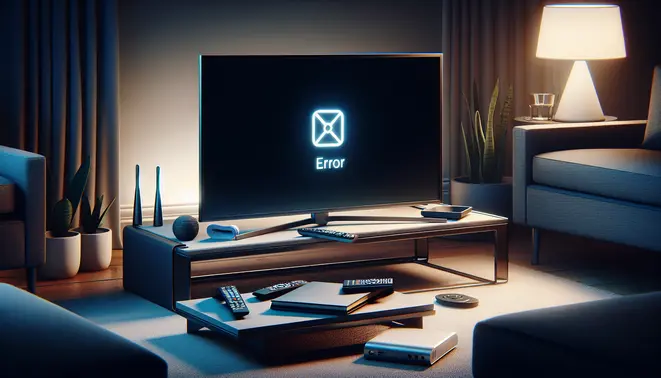
An IPTV black screen occurs when your television or streaming device displays no video content despite the application being open and running. This frustrating problem typically stems from issues within the complex chain of content delivery, from the source server to your display device. Moreover, the causes range from simple connectivity problems to more complex service disruptions.
For instance, a black screen can result from HDCP compliance issues, where content protection protocols prevent unauthorized copying of digital content. Additionally, network connectivity problems, server outages at your IPTV provider, or incorrect app configurations frequently trigger this visual interruption.
Different Types of IPTV Black Screen Errors
Not all black screens are identical, and understanding the variations can help pinpoint the underlying cause more effectively:
- Complete Black Screen: The screen remains entirely black with no error messages or loading indicators. This often indicates a complete signal loss, potentially from server downtime or severe connection issues.
- Black Screen with Audio: Video disappears while audio continues playing normally. This typically suggests video codec compatibility problems or graphics processing issues within your device.
- Intermittent Black Screen: The picture flickers between normal display and blackness. This pattern commonly points to unstable internet connections or bandwidth fluctuations.
- Channel-Specific Black Screen: Only certain channels display black screens while others work perfectly. This usually indicates temporary channel outages or regional broadcasting restrictions.
Common Scenarios When IPTV Black Screens Occur
Black screens tend to appear during specific usage scenarios, each with distinct underlying causes:
During Initial Setup: Many users encounter black screens when first configuring their IPTV subscription. This often results from incorrect login credentials, expired subscriptions, or improperly entered server URLs. Furthermore, compatibility issues between the IPTV app and your device can prevent proper initialization.
When Switching Channels: The transition between channels sometimes triggers temporary black screens as the system buffers new content. However, if the black screen persists beyond a few seconds, it may indicate that the specific channel is experiencing technical difficulties or has been removed from the service.
During High-Demand Events: Live sports matches and popular television premieres often strain IPTV servers. Consequently, sports IPTV services may display black screens during peak viewing periods when server capacity is exceeded.
After App or System Updates: Software updates can sometimes introduce compatibility issues that result in black screens. New versions of IPTV applications may conflict with older device firmware, or updated content protection measures might not function correctly with certain hardware.
During Network Fluctuations: Unstable internet connections remain a primary culprit for IPTV black screens. When your network speed drops below the minimum required for streaming, the video feed may cut out entirely while the application continues running in the background.
Understanding these common scenarios helps users quickly identify whether the issue stems from their equipment, internet connection, or the IPTV service itself. This knowledge provides a solid foundation for implementing targeted troubleshooting strategies to restore your viewing experience.
Quick Fixes You Can Try Immediately
Restart Your Devices
A simple restart often resolves temporary software glitches causing IPTV black screens. Begin by turning off your streaming device, smart TV, or set-top box. Unplug the device from its power source for at least 60 seconds. This action clears the device’s temporary memory and allows it to reboot fresh. Meanwhile, also restart your modem and router to refresh your internet connection. After the minute has passed, plug everything back in and power on your devices. This basic troubleshooting step can resolve numerous connectivity and performance issues.
Check Your Internet Speed and Connection
IPTV services require a stable and fast internet connection to stream video properly. A black screen can often indicate that your connection is too slow or unstable. Use a free online speed test tool like Speedtest by Ookla to check your current download speed. For standard definition streaming, you need at least 3-5 Mbps, while HD and 4K content require 10-25 Mbps or more. If your speed is insufficient, try moving your router to a more central location, connecting your device via an Ethernet cable for a more stable connection, or limiting the number of other devices using your network. For a deeper understanding of what makes a reliable service, our Complete IPTV Subscription Guide covers connection requirements in detail.
Clear the App Cache and Data
Over time, the IPTV app on your device can accumulate corrupted cache data, leading to playback issues like a black screen. Clearing this data forces the app to start fresh. The process varies by device, but generally, you can find this option in your device’s Settings menu under “Apps” or “Application Manager.” Locate your IPTV app, select it, and then choose “Clear Cache.” If the problem persists, you can also select “Clear Data,” but be aware this will log you out and erase any saved settings within the app. You will need to log in again afterward. This is a very effective fix for app-specific glitches.
Verify Your Subscription Status and Server Health
Sometimes the issue is not on your end. First, confirm that your IPTV subscription is active and has not expired by logging into your provider’s website or portal. Secondly, IPTV services can experience server outages or maintenance. Check your provider’s social media channels or status page for any announced service disruptions. If you are using a trial, ensure it is still valid. Our guide on IPTV Free Trials can help you navigate the terms of these offers. If the servers are down, the only solution is to wait for your provider to resolve the issue.
Network & Connection Issues
Internet Speed Requirements for Smooth IPTV Streaming
Consistent, high-quality IPTV streaming depends heavily on your internet connection speed. For standard definition (SD) content, you’ll need at least 3-5 Mbps, while high definition (HD) streams require 8-10 Mbps. Meanwhile, 4K Ultra HD content demands significantly more bandwidth—typically 25 Mbps or higher for optimal performance.
These requirements increase substantially if multiple devices are using the same network simultaneously. For example, streaming 4K content on one TV while another family member games online could easily push your bandwidth needs beyond 50 Mbps. Always test your connection speed using services like Speedtest by Ookla to verify you’re meeting these thresholds.
Why Upload Speed Matters Too
While download speed receives most attention, upload speed plays a crucial role in maintaining stable connections. IPTV services require consistent two-way communication between your device and their servers. Insufficient upload bandwidth can cause buffering even when download speeds appear adequate. Most providers recommend at least 3-5 Mbps upload speed for reliable streaming.
Router Configuration for Optimal IPTV Performance
Your router settings significantly impact streaming quality. Position your router centrally and elevate it to avoid physical obstructions. For wireless connections, the 5GHz band typically provides better performance for streaming due to less interference compared to the 2.4GHz band, though it has shorter range.
Quality of Service (QoS) settings can prioritize IPTV traffic over other internet activities. Enable QoS in your router’s administration panel and assign highest priority to your streaming device. Additionally, ensure your router’s firmware is updated regularly, as manufacturers often release performance improvements and security patches.
The Advantage of Wired Connections
For the most reliable IPTV experience, consider using an Ethernet cable instead of Wi-Fi. Wired connections eliminate wireless interference and provide more consistent bandwidth. According to PC Magazine’s analysis, Ethernet typically offers lower latency and fewer dropouts compared to wireless alternatives, making it ideal for bandwidth-intensive streaming.
DNS Configuration and Its Impact on Streaming
Your Domain Name System (DNS) settings affect how quickly your devices connect to IPTV services. Internet Service Providers often use slower DNS servers that can delay connection establishment. Switching to faster public DNS services like Google Public DNS (8.8.8.8 and 8.8.4.4) or Cloudflare DNS (1.1.1.1) can reduce connection times and improve overall streaming reliability.
Changing DNS settings is straightforward through your router’s administration interface or device network settings. This simple adjustment can resolve geo-location issues that sometimes affect IPTV services and potentially improve content loading speeds.
Advanced Network Troubleshooting
If you continue experiencing issues despite adequate speed and proper configuration, consider more advanced solutions. Powerline adapters can extend your network through electrical wiring, while mesh Wi-Fi systems provide seamless coverage throughout larger homes. For comprehensive guidance on choosing the right IPTV service to match your network capabilities, explore our complete IPTV subscription guide.
Remember that network performance fluctuates throughout the day. Peak usage hours (typically 7-11 PM) may result in slower speeds from internet congestion. If buffering persists during these times, consider upgrading your internet plan or scheduling demanding streaming during off-peak hours.
Device-Specific Troubleshooting
Smart TV Troubleshooting
When facing a black screen on your Smart TV while using IPTV services, start by checking your internet connection. A stable connection is essential for streaming, so verify your Wi-Fi signal strength or Ethernet connection. Next, force close the IPTV application and clear its cache from your TV’s settings menu. This simple step often resolves temporary glitches causing display issues.
If problems persist, check for available system updates for both your Smart TV’s operating system and the IPTV app itself. Outdated software frequently causes compatibility problems that result in black screens. Additionally, try switching to a different video resolution within your IPTV app settings, as some 4K content might not display properly on certain TV models.
Android Box Solutions
Android boxes are popular for IPTV streaming but can encounter specific black screen problems. Begin by checking your device’s available storage space, as insufficient storage can prevent apps from functioning correctly. Clear cached data and unused applications to free up memory. If you’re experiencing persistent issues, consider performing a factory reset, but remember to back up your important data first.
Another common solution involves adjusting the display settings within your Android box’s system preferences. Try changing the resolution output to match your television’s native resolution. Additionally, enable “Unknown Sources” in security settings if you’re using third-party IPTV applications, as restricted permissions can sometimes cause display problems. For optimal performance, ensure you’re using a reliable IPTV service that’s compatible with Android devices.
Amazon Firestick Fixes
Firestick users encountering black screens should first check their device’s power source. Insufficient power can cause display issues, so ensure you’re using the original power adapter and cable. Next, restart your Firestick by unplugging it from power for 30 seconds before reconnecting. This basic troubleshooting step resolves many temporary software glitches.
If the problem continues, clear the cache and data for your IPTV application through the Firestick’s application settings. You can also try sideloading an older version of the IPTV app if recent updates are causing compatibility issues. Furthermore, check that your Firestick’s display settings match your TV’s capabilities, particularly regarding HDR and resolution settings. Many users find success by testing their service with an IPTV free trial before committing to a subscription.
Gaming Console IPTV Issues
While less common for IPTV streaming, gaming consoles like PlayStation and Xbox can experience black screen problems. Start by ensuring your console’s operating system is completely up to date, as outdated firmware often causes app malfunctions. Check the IPTV application’s specific settings within the console and verify that video output settings match your display’s capabilities.
If you’re using a gaming console for IPTV, consider the console’s primary function versus dedicated streaming devices. Gaming consoles may prioritize gaming performance over streaming optimization, which can sometimes result in compatibility issues with IPTV services. For consistent performance, many users prefer dedicated streaming devices specifically designed for television content.
Mobile Device Troubleshooting
Smartphones and tablets running IPTV applications can experience black screens due to various factors. Begin by checking your device’s power saving modes, as these can restrict app functionality and cause display issues. Ensure your IPTV app has the necessary permissions to access media and storage, and try switching between Wi-Fi and mobile data to identify connection-related problems.
Mobile users should also verify that their IPTV application is compatible with their device’s operating system version. Older devices may struggle with newer app updates, resulting in black screens during playback. Clearing the app cache and ensuring adequate storage space are essential steps for mobile troubleshooting. Meanwhile, for television viewing, consider exploring 4K IPTV options that deliver superior picture quality on compatible displays.
Universal Troubleshooting Steps
Regardless of your specific device, several universal steps can help resolve IPTV black screen issues. First, always check your internet connection speed and stability using online speed tests. IPTV services require consistent bandwidth, particularly for sports IPTV and high-definition content. Restart your router if necessary to refresh your connection.
Second, verify your IPTV subscription status and server status. Service interruptions or expired subscriptions commonly cause black screens. Contact your provider if you suspect server-side issues. Finally, consider testing your IPTV service on a different device to determine whether the problem is device-specific or service-related. This diagnostic approach helps isolate the root cause more effectively.
For users seeking specialized content, such as Arabic IPTV or Latino IPTV services, ensure your chosen application properly supports the specific streaming formats and codecs required for these specialized channels. Similarly, European IPTV services may have unique regional requirements that affect playback on various devices.
Service Provider & Server Problems
Identifying Server-Side Issues
When your IPTV screen goes black, the problem often originates from the service provider’s end rather than your equipment. Server-side issues can range from temporary outages to more complex technical problems affecting multiple users simultaneously. These problems typically manifest as complete service loss, buffering, or error messages that persist across different devices on your network.
Common server-related problems include maintenance windows, unexpected downtime, server overload during peak viewing hours, or geographic restrictions affecting content delivery. Additionally, some providers may experience payment gateway issues that disrupt service even if your subscription is current. Recognizing these patterns helps you determine whether the issue requires provider intervention.
Checking Service Status
Before troubleshooting your equipment, verify whether your IPTV provider is experiencing widespread issues. Many reputable services maintain status pages or social media channels where they post real-time updates about outages and maintenance schedules. Check these resources first to save time on unnecessary troubleshooting.
You can also use third-party monitoring services like DownDetector to see if other users are reporting similar problems. Meanwhile, test your connection with other streaming services to isolate the issue. If YouTube, Netflix, or other platforms work fine while only your IPTV service fails, the problem likely lies with your provider’s servers.
When to Contact Your IPTV Provider
Contact your provider when you’ve confirmed the issue isn’t local to your setup. Persistent black screens across multiple devices, widespread service interruptions reported by other users, or recurring problems during specific times all warrant contacting support. Additionally, if you receive specific error codes like “Service Unavailable” or “Connection Timed Out,” these often indicate server-side problems.
Before reaching out, gather essential information including your account details, the specific channels or services affected, error messages received, and the duration of the problem. This preparation helps support staff identify and resolve issues more efficiently. Remember that quality providers typically respond promptly to genuine service disruptions.
Choosing Reliable IPTV Services
Server reliability varies significantly between IPTV providers. When selecting a service, prioritize those with proven uptime records and responsive customer support. Our complete IPTV subscription guide covers what to look for in a reliable provider, including server infrastructure