M3U Firestick The Complete IPTV Tutorials Guide
What is M3U Firestick IPTV?
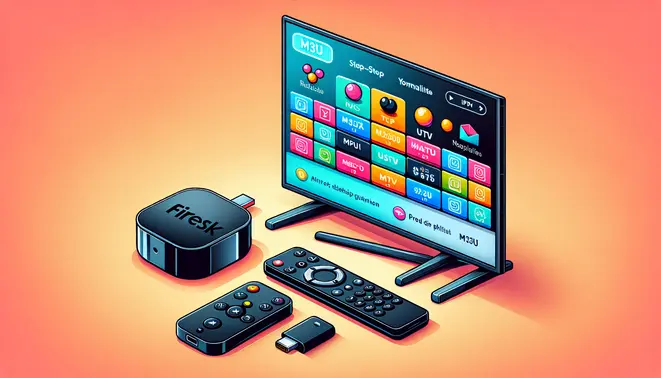
M3U Firestick IPTV refers to a method of watching Internet Protocol Television (IPTV) on an Amazon Fire TV device using M3U playlist files. An M3U file is a plain text file that contains the URLs of media streams. For IPTV, these playlists act as a directory, pointing your media player to the locations of live TV channels and video-on-demand content over the internet. This approach provides a highly customizable viewing experience, allowing you to curate your own channel list from various sources.
How M3U IPTV Differs from Traditional Streaming
Unlike mainstream streaming services like Netflix or Hulu, which offer a curated, closed library of content, M3U-based IPTV gives you direct access to stream URLs. This fundamental difference means you are not limited to a single provider’s content. Instead, you can aggregate channels from around the world. However, this also places the responsibility of finding reliable and legal streams on the user. For a broader look at the IPTV ecosystem, our complete IPTV subscription guide explores various service models.
Key Benefits of Using M3U Playlists
Adopting an M3U playlist system for your Firestick comes with several distinct advantages that appeal to cord-cutters seeking flexibility.
- Extensive Channel Selection: Access thousands of live channels from different countries and genres, far surpassing typical cable or satellite offerings.
- High Customization: You have full control to add, remove, and organize channels within your playlist, creating a truly personalized TV guide.
- Cost-Effectiveness: M3U IPTV services are often significantly cheaper than traditional cable packages, providing a budget-friendly entertainment solution.
- Compatibility: The M3U format is widely supported by numerous IPTV player apps available on the Firestick, such as TiviMate, IPTV Smarters, and VLC.
Important Legal and Safety Considerations
While the technology is powerful, it is crucial to understand the legal landscape surrounding M3U IPTV usage.
The Legality of M3U Playlists
The M3U format itself is perfectly legal; it is simply a text file. The legality depends entirely on the source of the streams listed within the playlist. Using M3U playlists to access copyrighted content without proper licensing from the broadcasters is illegal in most countries. Authorities are increasingly cracking down on unauthorized IPTV services, so it is vital to verify that your IPTV provider has the legal rights to distribute the channels they offer. Our guide on 4K IPTV quality, cost, and legality delves deeper into this critical topic.
Security Risks and How to Mitigate Them
Venturing into the world of unofficial M3U playlists carries inherent risks. These can include malware, data theft, and unreliable service. To protect yourself, always use a reputable VPN (Virtual Private Network) when streaming IPTV. A VPN encrypts your internet traffic, hiding your activity from your Internet Service Provider (ISP) and potential snoopers. Furthermore, thoroughly research any IPTV service before subscribing. Taking advantage of an IPTV free trial is a smart way to test a service’s reliability, channel quality, and legitimacy before making a financial commitment.
Setting Up M3U IPTV on Your Firestick
Step 1: Enable Apps from Unknown Sources
Before you can install any IPTV apps, you must first allow your Firestick to install applications from outside the Amazon Appstore. This process is straightforward but essential. Navigate to Settings on your Fire TV home screen. From there, select My Fire TV (or Device & Software on older models), then choose Developer Options. Finally, turn on the setting for Apps from Unknown Sources [Source: Amazon Help].
Enabling this option gives you the freedom to sideload powerful streaming applications that are not officially available. However, it is a security trade-off. Therefore, you should only download apps from reputable sources to protect your device and personal information.
Step 2: Install a Downloader App and Your IPTV Player
Since you cannot directly download M3U-based IPTV players from the Amazon Appstore, you need a tool to help you install them. The most popular and user-friendly option is the Downloader app.
You can find the Downloader app directly in the Amazon Appstore. Simply search for “Downloader” and install it. Once opened, you can use its browser to navigate to a trusted source and download the APK file for your chosen IPTV player, such as Tivimate, IPTV Smarters, or OTT Navigator [Source: Troypoint].
For a deeper dive into choosing the right service for your player, our complete IPTV subscription guide can help you make an informed decision.
Step 3: Optimize Your Network Connection
A stable and fast internet connection is non-negotiable for a smooth IPTV experience, especially when streaming high-definition or 4K content. For the best performance, a wired Ethernet connection is superior to Wi-Fi. You can achieve this on a Firestick by using an Ethernet adapter that plugs into your device’s micro-USB port.
If you must use Wi-Fi, ensure your Firestick has a strong signal. You can check your network speed and performance under Settings > Network. For optimal streaming, a consistent download speed of at least 25 Mbps is recommended for 4K content [Source: FCC].
Step 4: Set Up a VPN for Security and Access
Using a Virtual Private Network (VPN) is a critical step for any IPTV user. A VPN encrypts your internet traffic, hiding your online activity from your Internet Service Provider (ISP) and potential snoopers. This is crucial because some ISPs may throttle your bandwidth if they detect high-data activities like streaming.
Furthermore, a VPN allows you to bypass geo-restrictions, giving you access to a wider range of content libraries. Many reliable VPN providers, such as ExpressVPN or NordVPN, have dedicated apps available in the Amazon Appstore. After installing one, simply open the app, log in, and connect to a server of your choice [Source: ExpressVPN].
Before committing to a paid IPTV plan, you can test the service with your new setup. Our guide on IPTV free trials explains how to safely evaluate providers.
Comparing the Best M3U Firestick IPTV Players
Choosing the right IPTV player for your Firestick can dramatically improve your streaming experience. These specialized apps handle M3U playlist files from IPTV services, providing organized channel guides, recording capabilities, and superior playback performance. Let’s examine the top contenders in the Firestick IPTV player market.
TiviMate: The Premium Choice
TiviMate has earned its reputation as the gold standard for IPTV playback on Firestick devices. This feature-rich application offers an intuitive interface that closely mimics traditional cable or satellite TV experiences. Its powerful electronic program guide (EPG) displays comprehensive program information and supports multiple playlists simultaneously.
Key advantages include:
- Advanced recording functionality with external storage support
- Customizable interface with multiple color themes
- Support for multiple IPTV accounts in one application
- Parental controls and favorite channel management
While TiviMate requires a premium subscription for full functionality, its one-time payment provides lifetime access to all features. The app receives regular updates and maintains excellent stability across Firestick models [Source: TiviMate Official].
IPTV Smarters Pro: User-Friendly Alternative
IPTV Smarters Pro stands out for its clean, accessible interface that appeals to both beginners and experienced users. This free application supports not only M3U playlists but also Xtream Codes API connections, making it compatible with most IPTV services. The app organizes content logically with separate sections for live TV, VOD, and series.
Notable features include:
- Built-in video player with hardware acceleration
- Multi-screen support for watching multiple channels
- Parental controls and catch-up TV functionality
- Compatibility with external players like VLC and MX Player
IPTV Smarters Pro remains completely free with optional premium features available through in-app purchases. Its regular updates ensure compatibility with the latest Firestick models and IPTV services [Source: IPTV Smarters Official].
OTT Navigator: The Power User’s Pick
OTT Navigator delivers exceptional customization options for users who want precise control over their viewing experience. This robust application supports advanced features like timeshift functionality, which allows pausing and rewinding live television. The app’s modular design enables extensive interface customization.
Standout capabilities include:
- Advanced EPG with program search and filtering
- Multi-decoder support for various streaming formats
- Comprehensive recording options with scheduling
- Integrated media center for local content
The free version provides substantial functionality, while the premium unlock adds recording and additional customization features. OTT Navigator works seamlessly across all Firestick generations [Source: OTT Navigator Official].
Smart IPTV: Simple and Reliable
Smart IPTV offers a straightforward approach to IPTV playback with minimal setup requirements. This application focuses on core functionality without overwhelming users with excessive options. Its simple interface displays channels in a clean list format with basic EPG support.
Essential features include:
- Easy M3U playlist import via URL or local file
- Basic channel organization and favorites
- Reliable playback with hardware decoding
- One-time activation fee after trial period
Smart IPTV provides a 7-day free trial before requiring a small one-time payment for continued use. The app maintains excellent stability and works reliably on older Firestick models [Source: Smart IPTV Official].
Choosing Your Ideal IPTV Player
Selecting the right IPTV player depends on your specific needs and technical comfort level. TiviMate excels for users seeking a premium, cable-like experience with extensive features. Meanwhile, IPTV Smarters Pro offers the best balance of functionality and ease of use for most viewers.
Power users who value customization should consider OTT Navigator, while those preferring simplicity will appreciate Smart IPTV’s straightforward approach. Remember that these players require compatible IPTV subscriptions to access content.
Before committing to any player, take advantage of free trials when available. Many IPTV services also offer free trial periods to test compatibility with your chosen player. Additionally, ensure your selected service provides adequate 4K streaming quality if that’s important for your viewing preferences.
Configuring Your M3U Playlist on Firestick
Before installing your M3U playlist, you need to prepare the necessary components. An M3U playlist is a text file containing URLs that point to streaming content, while an Electronic Program Guide (EPG) provides TV schedule information. You’ll need both a valid M3U URL from your IPTV provider and a corresponding EPG URL to display program information.
Most IPTV services provide these URLs upon subscription. If you’re looking for reliable providers, our complete IPTV subscription guide covers top services that offer compatible M3U playlists. Always ensure you’re using legitimate sources to avoid potential legal issues and security risks.
Adding Your M3U Playlist URL
Once your IPTV player is installed, you’ll need to add your M3U playlist. The process varies slightly between applications but generally follows these steps:
- Open your IPTV player and navigate to the settings or configuration menu
- Select “Add Playlist” or “Add Source” option
- Choose “Add URL” and enter your complete M3U playlist URL
- Name your playlist for easy identification
- Save the configuration and wait for the channels to load
Many applications offer the option to test your playlist before saving. This feature helps verify that your URL is working correctly and can access the streaming content. If you encounter issues, double-check that you’ve entered the URL exactly as provided by your IPTV service.
Configuring the EPG (Electronic Program Guide)
Setting up your EPG enhances your viewing experience by providing program schedules and descriptions. To configure EPG:
- Navigate to the EPG settings within your IPTV player
- Select “Add EPG Source” or similar option
- Enter the EPG URL provided by your IPTV service
- Assign the EPG to your previously added playlist
- Update the EPG data to load current program information
The application will typically download and process the EPG data, which may take several minutes depending on the size of your playlist. Some IPTV players allow you to schedule automatic EPG updates to ensure your program information remains current.
Organizing Your Channels Effectively
After successfully loading your playlist and EPG, organizing your channels improves navigation. Most IPTV players offer several organization features:
- Create Favorites: Mark frequently watched channels for quick access
- Group by Category: Organize channels by type (sports, news, movies)
- Custom Order: Rearrange channels according to your preference
- Hide Channels: Remove unwanted channels from your view
Many applications also allow you to create multiple profiles with different channel arrangements, making it easy to set up personalized experiences for different household members.
Advanced M3U Playlist Customization
Advanced M3U settings on Firestick unlock powerful customization options that transform your viewing experience. You can modify interface elements, organize channel lists, and create personalized favorites for quick access to preferred content. Many IPTV players allow you to adjust themes, change color schemes, and rearrange channel order to match your preferences.
For optimal performance, consider organizing channels by category or creating multiple playlists for different family members. This approach reduces clutter and makes navigation more intuitive. Additionally, you can customize electronic program guide (EPG) displays to show only relevant information, eliminating unnecessary data that can slow down your interface.
Advanced Recording and Timeshift Features
Many premium IPTV players support recording capabilities when using M3U playlists with your Firestick. This feature allows you to schedule recordings of live TV programs and movies for later viewing. To enable recording, ensure you have sufficient storage space either on your Firestick or through connected external storage devices.
Timeshift functionality provides another powerful option, letting you pause, rewind, and fast-forward live television. This is particularly useful when interruptions occur during important programs. Configure timeshift buffer settings to determine how much live content you can rewind—typically ranging from 30 minutes to several hours depending on your device’s storage capacity.
Implementing Parental Controls and Security
Advanced parental controls are essential for family-friendly streaming environments. Most IPTV applications allow you to set up PIN-protected access to specific channels, categories, or entire applications. You can create customized profiles with different restriction levels for children of various ages.
For enhanced security, consider using VPN services alongside your M3U playlists to protect your streaming activities and maintain privacy. Additionally, regularly updating your IPTV player applications ensures you have the latest security patches and feature improvements. Our complete IPTV subscription guide provides additional security recommendations for protecting your streaming setup.


