How To Clear Cache On Firestick For Optimal IPTV Performance
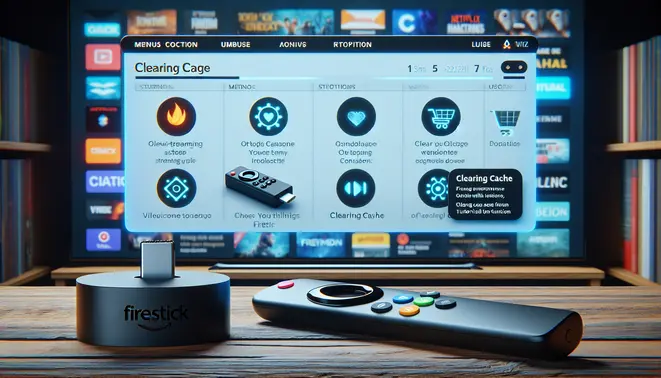
What Is Cache and How Does It Work?
Cache is a small, high-speed memory component that stores temporary data to help your device access frequently used information more quickly. Think of it as a short-term memory bank for your Firestick that holds onto data from apps, websites, and streaming services you regularly use. This temporary storage allows your device to load content faster instead of retrieving the same information repeatedly from the original source.
When you stream IPTV content, your Firestick’s cache stores elements like channel lists, app interfaces, and frequently accessed video data. This system works behind the scenes to create a smoother streaming experience by reducing loading times and minimizing buffering. However, when this cache becomes overloaded with outdated or corrupted data, it can actually slow down your device rather than speed it up.
How Cache Impacts Firestick Performance
Proper cache management directly affects your Firestick’s overall performance and streaming capabilities. A well-maintained cache helps your device operate efficiently, while accumulated cache data can lead to noticeable performance degradation. The relationship between cache and device speed follows a predictable pattern that every Firestick user should understand.
Initially, cache improves performance by storing essential data for quick access. Over time, as you install more apps and stream more content, the cache accumulates outdated information that occupies valuable storage space. This buildup forces your Firestick to work harder to sort through irrelevant data, ultimately slowing down app launches, channel changes, and menu navigation.
Common Symptoms of Cache-Related Issues
Recognizing cache-related problems early can help you maintain optimal Firestick performance. Several telltale signs indicate when your device’s cache needs attention. Being aware of these symptoms allows you to address issues before they significantly impact your IPTV streaming experience.
One of the most common indicators is persistent buffering during streaming, even with a stable internet connection. You might notice apps taking longer to load or becoming unresponsive when switching between channels. Other symptoms include frequent app crashes, error messages when launching applications, and overall sluggish navigation through menus and settings.
Additionally, you may experience playback issues where video quality fluctuates unexpectedly or audio becomes out of sync with video. These problems often stem from corrupted cache data interfering with normal streaming functions. When multiple apps exhibit similar performance issues simultaneously, it’s typically a strong indicator that system-wide cache management is needed.
Cache’s Direct Impact on IPTV Streaming Quality
Cache plays a crucial role in determining your IPTV streaming quality and reliability. Well-managed cache contributes to seamless channel switching, faster loading times, and stable video playback. Conversely, problematic cache can transform what should be an enjoyable streaming session into a frustrating experience filled with interruptions.
The cache stores critical elements that affect your 4K IPTV streaming quality, including channel information, electronic program guide data, and frequently accessed video segments. When this cache becomes corrupted or overloaded, it can cause buffering, pixelation, and sudden drops in video resolution. These issues are particularly noticeable during high-demand streaming periods or when accessing content from your IPTV subscription service.
Furthermore, cache problems can interfere with proper app functionality, leading to login issues, incorrect channel listings, or failure to load premium content. Regular cache maintenance ensures that your Firestick can properly communicate with IPTV servers and deliver the high-quality streaming experience you expect from your service provider.
Essential Pre-Clearing Checklist
Before clearing your IPTV app cache, proper preparation ensures you won’t lose important data or settings. This crucial step-by-step process protects your viewing experience while optimizing performance.
Back Up Your Data First
Always create a backup of your IPTV settings and playlists before clearing cache. Many IPTV apps allow you to export your configuration, favorite channels, and customized settings to external storage or cloud services. For example, popular apps like TiviMate and IPTV Smarters offer built-in backup features that preserve your personalized setup. This precaution ensures you can quickly restore your preferred viewing experience after the clearing process.
Document Your Installed IPTV Applications
Create a comprehensive list of all IPTV applications installed on your device. Include both primary streaming apps and any supporting applications you use for content management. This inventory helps you systematically address each app’s cache clearing needs without missing any. Additionally, note which version of each application you’re running, as cache management procedures can vary between versions. This documentation becomes particularly valuable if you encounter issues and need to reinstall specific applications.
Understand What Gets Cleared Versus What Stays
Clearing cache primarily removes temporary files that accumulate during normal app operation. These typically include buffered video segments, thumbnail images, and temporary login data. Importantly, clearing cache generally preserves your account credentials, subscription information, and saved playlists. However, the exact impact varies between applications, so consult your specific IPTV app’s documentation for precise details about what data remains intact.
Differentiate Between Cache and Data Clearing
Many users confuse clearing cache with clearing data, but these operations have significantly different consequences. While clearing cache removes temporary files without affecting your settings, clearing data essentially resets the application to its original installed state. This more drastic action erases all your preferences, login information, and customized configurations. Therefore, always choose the cache clearing option unless you’re troubleshooting serious application issues.
Verify Your Internet Connection
Ensure you have a stable internet connection before beginning the cache clearing process. After clearing cache, your IPTV applications will need to reload certain elements from their servers. A reliable connection prevents interruptions during this rebuilding phase. Additionally, you may need to re-authenticate with your IPTV subscription service if the clearing process affects stored login tokens.
Check Available Storage Space
Before clearing cache, verify that your device has sufficient storage capacity. While clearing cache frees up space, the process temporarily requires some working room during the operation. Insufficient storage can cause errors or incomplete cache clearing. As a general rule, ensure at least 10-15% of your device’s total storage remains available for optimal performance during maintenance procedures.
Schedule Appropriate Timing
Plan your cache clearing for a time when you won’t need immediate access to your IPTV services. The process may temporarily disrupt your viewing as applications rebuild their cache and reload interface elements. Typically, this interruption lasts only a few minutes, but scheduling during off-peak viewing hours ensures minimal disruption to your entertainment. Meanwhile, consider having alternative entertainment options available during the brief maintenance window.
By following this comprehensive preparation routine, you can clear your IPTV app cache confidently, knowing your settings and preferences remain secure while optimizing your streaming performance.
How to Clear Cache on Firestick: A Step-by-Step Guide
Clearing cache on your Firestick can resolve buffering issues, improve app performance, and free up valuable storage space. This process removes temporary files that apps accumulate over time. Fortunately, Amazon provides straightforward methods to manage this through the device settings. You can clear cache for individual apps or perform a more comprehensive system-wide clearing when needed.
Method 1: Clearing Cache for Individual Apps
This targeted approach is ideal when a specific application like Netflix or Hulu is malfunctioning.
Navigate to Settings > Applications > Manage Installed Applications. Select the problematic app from the list. On the application info screen, you will see two options: “Clear cache” and “Clear data.” Choose Clear cache. This action removes temporary files without deleting your login information or saved preferences. It’s a safe first step for troubleshooting [Source: Amazon Device Support].
Method 2: Performing a System-Wide Cache Clear
For a broader cleanup that can enhance overall system speed, you can clear the cache for multiple system components at once.
Go to Settings > Applications > Manage Installed Applications. Instead of selecting a single app, scroll down and choose the following system applications one by one, clearing the cache for each:
- Amazon Appstore
- Amazon Web View
- Download Manager
- Settings Storage
Clearing the cache for these core components can resolve general sluggishness and minor glitches across the entire device interface.
Method 3: Force Stopping Stubborn Apps
Sometimes, an app may freeze or fail to respond correctly even after clearing its cache. In these cases, force stopping the application is the next logical step.
Return to Settings > Applications > Manage Installed Applications and select the troublesome app. This time, press the Force Stop button. This action completely shuts down the application’s background processes. Afterward, reopen the app. This forces a fresh start and often resolves issues that a simple cache clear could not fix [Source: How-To Geek].
When to Use Each Method
Choosing the right method depends on the problem you’re experiencing. Use the individual app cache clear for app-specific problems like crashing or video errors. Opt for the system-wide clear if your Firestick feels generally slow. Finally, employ the force stop method for apps that are completely unresponsive. For more tips on optimizing your streaming setup, explore our guide on the best IPTV subscriptions. Regularly maintaining your device’s cache is a simple but effective way to ensure a smooth and uninterrupted viewing experience.
Advanced Cache Management Techniques
While basic cache clearing is essential, several advanced techniques can help you maintain optimal streaming performance with less manual effort. These methods provide more comprehensive cleaning and automated maintenance.
Using Third-Party Cleaner Apps
Specialized cleaner applications offer more thorough cache management than built-in system tools. Apps like CCleaner and Clean Master can remove residual files, temporary data, and system clutter that standard clearing might miss. [Source: PCMag] These tools often include additional features like duplicate file detection and registry cleaning, providing a more comprehensive system optimization.
However, exercise caution when selecting third-party cleaners. Some applications may contain malware or overly aggressive cleaning algorithms. Always download from official app stores and read reviews before installation. Additionally, premium versions of these apps typically offer more advanced features and better security.
Scheduling Automatic Cache Clearing
Setting up automatic cache clearing ensures your device maintains optimal performance without requiring constant manual intervention. Many cleaner apps include scheduling features that allow you to set regular cleaning intervals—daily, weekly, or monthly. This approach prevents cache buildup from reaching problematic levels and maintains consistent streaming quality.
For devices without dedicated scheduling features, you can use built-in automation tools. Android TV devices support automation through apps like Tasker, while some streaming platforms have built-in maintenance schedules in their developer options. Regular automated cleaning is particularly beneficial for households with multiple users who may not remember to clear cache manually.
Managing App-Specific Cache Settings
Different streaming applications have varying cache management approaches. Netflix, for instance, stores significant amounts of data to enable smooth playback and quick loading of interface elements. [Source: Netflix Help Center] Meanwhile, live streaming services like IPTV applications often maintain larger caches to buffer live content effectively.
To manage app-specific caches:
- Access each application’s settings menu to find storage options
- Clear data for apps experiencing persistent issues (this will reset preferences)
- Monitor which apps consume the most cache space regularly
- Consider disabling background data for non-essential applications
Understanding each app’s caching behavior helps you prioritize which applications need more frequent maintenance. Services that stream high-bitrate 4K content, like those discussed in our Ultimate 4K IPTV Guide, typically generate larger cache files that require more attention.
Implementing a Comprehensive Maintenance Routine
Combine these techniques into a structured maintenance schedule. Use third-party cleaners for deep monthly cleanings, schedule automatic weekly cache clearing for basic maintenance, and monitor app-specific caches bi-weekly. This layered approach ensures your streaming device remains responsive while minimizing the time spent on manual maintenance.
Remember that while these advanced techniques improve performance, they work best alongside other optimization practices. For optimal streaming experience, consider pairing cache management with proper network configuration and quality service selection, as detailed in our Complete IPTV Subscription Guide.
Understanding Cache Optimization for IPTV Services
Cache optimization is essential for delivering smooth IPTV experiences, but the approach differs significantly between live streaming and video-on-demand (VOD) content. For live streaming, smaller cache sizes with faster refresh rates ensure minimal latency, while VOD benefits from larger caches that store entire programs for repeated access. [Source: Wowza] This distinction forms the foundation of effective IPTV cache management strategies.
Live Streaming Cache Strategies
Live IPTV streams demand real-time delivery with minimal delay. Implementing a smaller, frequently refreshed cache prevents buffer buildup while maintaining synchronization with broadcast events. Many providers use chunk-based caching, where small segments of the live stream are temporarily stored to handle viewer join/leave patterns efficiently. [Source: Akamai] This approach reduces the impact of network fluctuations and ensures consistent playback across different connection speeds.
Additionally, adaptive bitrate streaming works in tandem with cache optimization to deliver the best possible quality based on each viewer’s bandwidth. The cache stores multiple quality versions of the same content, allowing seamless transitions between resolutions without interrupting the viewing experience. Our IPTV subscription guide explains how these technical considerations affect your overall streaming quality.
VOD Cache Optimization Techniques
Video-on-demand content follows completely different caching rules. Since VOD files remain static after upload, they benefit from longer cache durations and larger storage allocations. Implementing predictive caching for popular content can dramatically reduce load times during peak viewing hours. [Source: Google Cloud] Many services use popularity-based algorithms to determine which content should receive priority caching.
Furthermore, tiered caching strategies prove highly effective for VOD libraries. Frequently accessed recent releases might reside in memory caches for instant access, while older content moves to disk-based storage. This balanced approach maximizes resource utilization while maintaining performance standards across the entire catalog. When testing IPTV services through free trials, pay attention to how quickly VOD content loads, as this often reflects their cache optimization effectiveness.
Balancing Cache Size and Performance
Determining the optimal cache size involves careful consideration of several factors. Storage capacity must balance against expected concurrent viewers, content variety, and available bandwidth. [Source: NGINX] Over-provisioning cache wastes resources, while under-provisioning leads to frequent cache misses and degraded performance.
Monitoring tools provide crucial insights for cache tuning. Track metrics like cache hit ratios, byte hit rates, and request patterns to identify optimization opportunities. Many successful IPTV providers implement dynamic cache sizing that automatically adjusts based on real-time demand patterns. For 4K IPTV services, cache requirements increase significantly due to larger file sizes, making proper sizing even more critical.
Implementation Best Practices
Several proven techniques enhance IPTV cache performance across both live and VOD scenarios. Content delivery networks (CDNs) with edge caching reduce latency by storing content closer to viewers. [Source: AWS] Meanwhile, implementing proper cache headers and expiration policies ensures content remains fresh while minimizing unnecessary origin server requests.
Regular cache maintenance prevents performance degradation over time. Establish procedures for cache warming before anticipated high-traffic events and implement cache invalidation protocols for content updates. These practices, combined with continuous monitoring, create a robust caching foundation that supports quality IPTV delivery at scale.


